
 Cal. No. W770 Riiiver
 Refine your search
W770 Riiiver
Others
Cannot make the smartphone emit sound.
The conditions must be fulfilled to make a smartphone emit sound.
- The smartphone has already been registered (paired) with the watch.
- Registration information of the smartphone which you want to make emit sound is selected.
- “Find my smartphone” is activated on the “Setting” screen of the dedicated app.
- The smartphone is connectible (you do not have to connnect the watch with it if it is in connectible status).
- No headphones are connected to the smartphone.
1. Check the power reserve of the watch.
!
Charge the watch until level 2 when the power reserve level is “1” or lower.
!
You cannot connect the watch with your smartphone when the power reserve level is “0”.
- Pull the crown out to position 1.
- Rotate the crown to change the mode to [TME].
- Push the crown in to position 0.
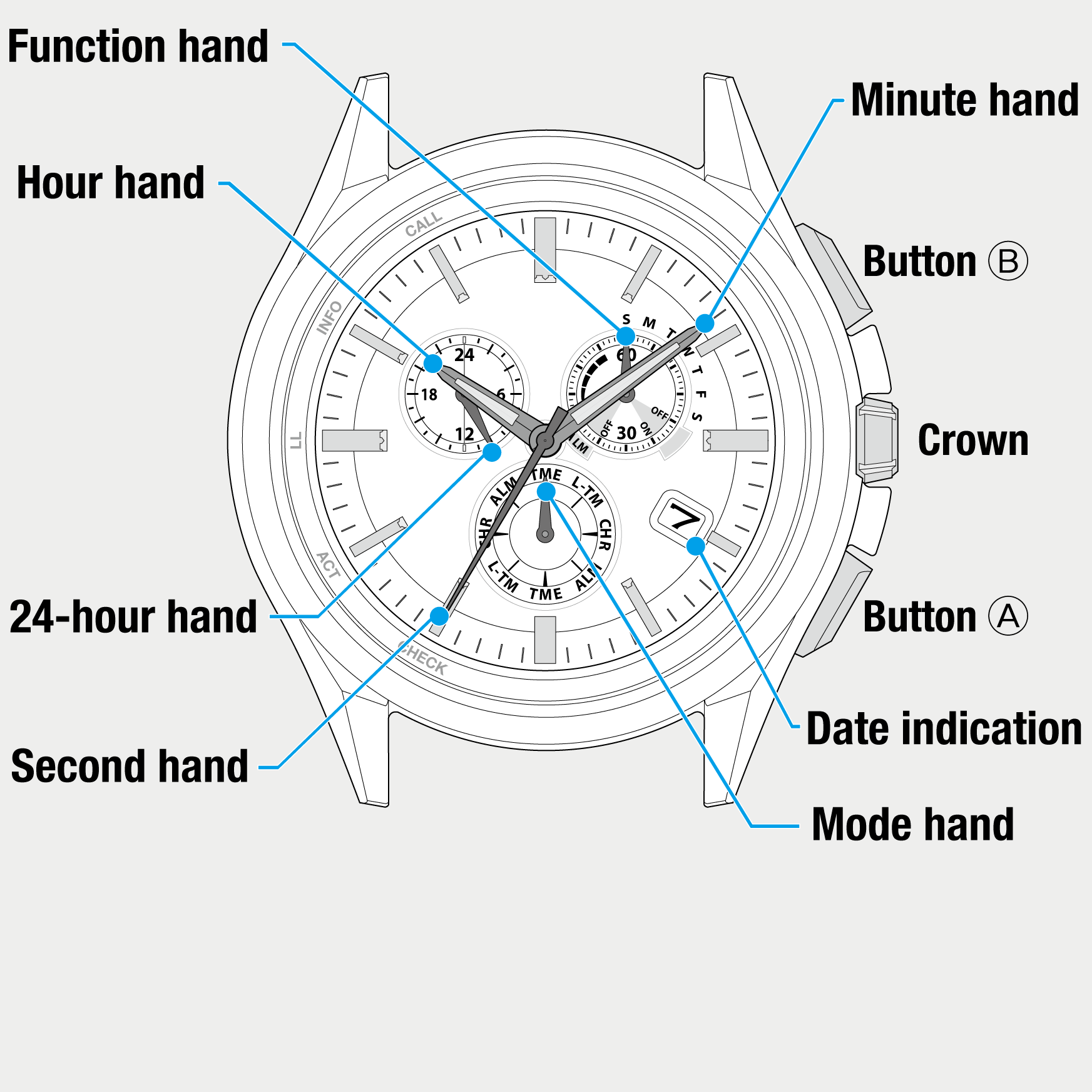
- Press the lower right button A repeatedly to make the function hand indicate power reserve.
The second hand points to 30 seconds and stops.
2. Switch registration information and make the smartphone emit sound.
- Press and release both the lower right button A and upper right button B simultaneously.
- Pull the crown out to position 2.
- Rotate the crown to choose another registration information.
- Push the crown in to position 0.
- Repeat steps 1 - 4.
!
Check whether the smartphone emits sound.
The second hand points the saving destination of registration information currently chosen and the function hand indicates connection status (ON/OFF).
!
Each time you rotate the crown, the second hand moves as follows:
“5 seconds” → “10 seconds” → “15 seconds” → (back to the top)
3. When the smartphone does not emit sound even after switching registration information
Below may be possible causes.
- Your smartphone is turned off.
- Your smartphone is out of connectible range or connection fails due to obstacles or other causes even if it is within the range.
- “Find my smartphone” is deactivated on the “Setting” screen of the dedicated app.
- Headphones are connected to your smartphone.
!
To activate “Find my smartphone” on the “Setting” screen of the dedicated app, see “reens of the dedicated app”.
Related articles
Screens of the dedicated app